After the announcements at WWDC around the expanded Apple Business API, which lets you pull device information and audit events from Apple Business, and also assign or unassign devices, I got into Xcode to start working with it.
I quickly ran into an annoying error while using the Audit Events API:
Raw response body:
{
  "errors" : [
    {
      "code" : "FORBIDDEN_ERROR",
      "detail" : "The API key in use does not allow this request",
      "id" : "b8ffb8f4-31e5-43a6-9f64-bd1ce47e8ae5",
      "status" : "403",
      "title" : "This request is forbidden for security reasons"
    }
  ]
}
The error was clear enough, but apparently I hadn’t used the right role or have the permissions to use this API. So, time to consult the documentation: a classic case of “RTFM” (Read The Fantastic Manual 😆 ).
Luckily Apple documents everything well, and I quickly landed on this page: Create an API account in Apple Business.
Unfortunately, that page only got me so far. Under Data Access, all it said about audit events was:
Category Audit events
Permission name Access audit events using the Admin API.
Description Retrieve a list of audit events for an organization, filtered by various criteria. An audit event represents an activity within the organization, for example adding or removing a device.
It wasn’t clear yet what I actually needed to do, so that page alone didn’t get me there. I did pick up a fun fact along the way, though: there’s a note saying you can have up to 50 API accounts. Didn’t know that, so, small win.
Further down the page was something more actionable:
Edit an existing API account that was migrated from Apple Business or Apple Business Essentials
Step 4 - If necessary, choose any of the following:
Change the role - The custom role is Device API Manager. To edit the role’s permissions, see Intro to roles and permissions.
That page gave me more context on roles and permissions in Apple Business, and quickly pointed me to the right place. The very first bullet point in the Overview stated:
• Any user whose role has permissions to view, edit, and delete roles can change specific permissions on all default roles.
with a link to Default roles and permissions.
That page laid out all the available options, and from there I finally knew what to do to create a custom role in Apple Business.
Creating a custom role
To create or edit a custom role, go to Settings → Roles & Permissions. From there you can create or modify a role. Note that you can create a maximum of 15 custom roles.
When creating a custom role, you can base it on an existing role and add extra permissions on top. That gave me an idea: check whether starting from an existing role plus a small tweak would get me what I needed, instead of building something from scratch.
Building a checker tool
Since we now have AI to lean on, I built a small tool to help with exactly this. I used this prompt in Claude:
“Turn this website Default roles and permissions in Apple Business into an easy tool where you can check off the Organization permissions you need, so you can see which Role fits: IT Administrator, Marketing Administrator, People Manager, Device Enrollment Manager, Content Manager. Right now it’s just one long list.”
That produced a working tool where I can tick the organization permissions I need, and immediately see which default role already covers those permissions, or how to customize one that does.
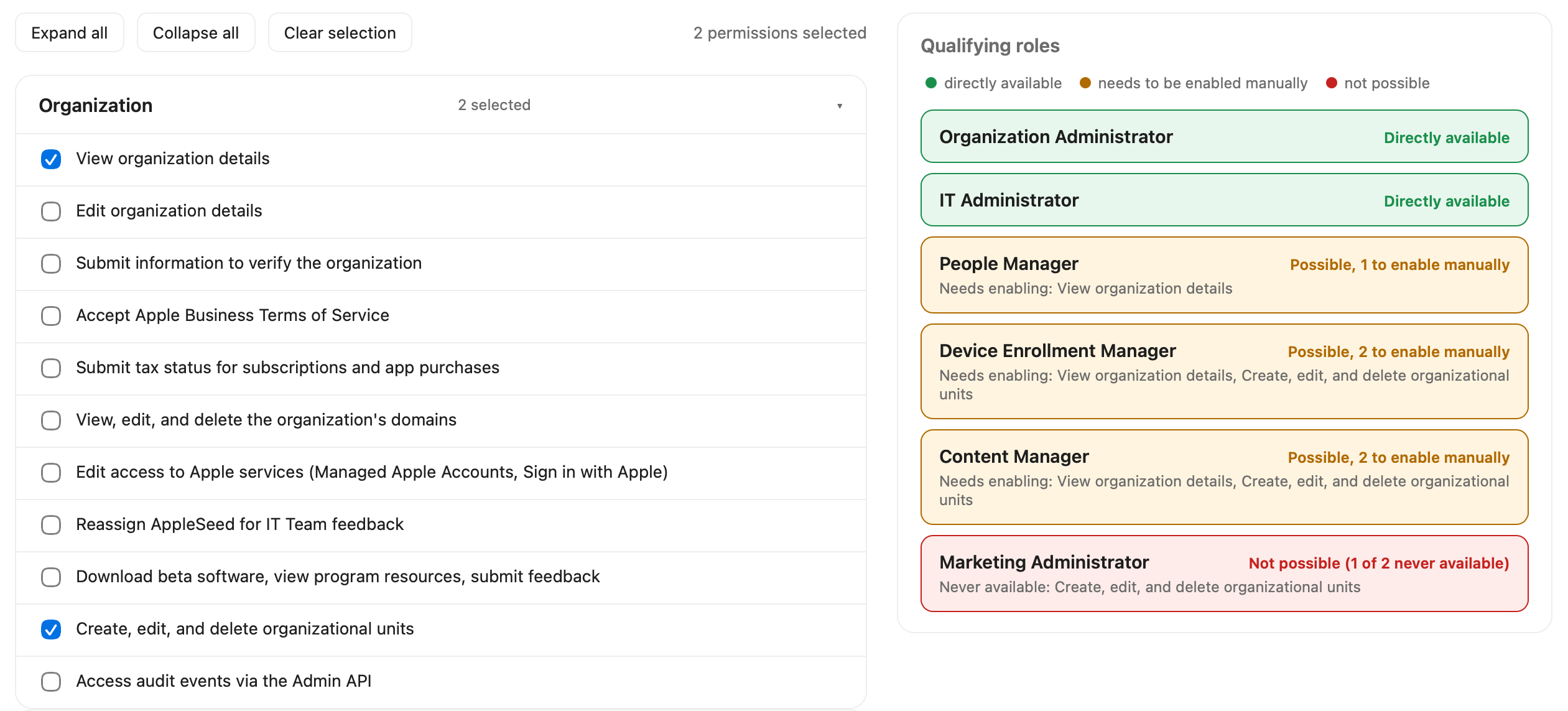
I find it very usefull, so I figured I’d make it available for everyone.
Here’s the link: Roles Checker Apple Business